Setting up Google Search Console
Grant Iterant read access to your Google Search Console property to analyze search performance data.
Google Search Console tracks how your site appears in Google search results: impressions, clicks, average position, and indexing status. Connecting it to Iterant surfaces search visibility trends and keyword opportunities next to your AI visibility data.
Prerequisites
- Owner or full-user access to the Search Console property for your website.
- A verified site in Search Console. If yours isn't verified yet, add and verify your property first.
Step-by-step
Open user management
Go to Google Search Console, Users and permissions and select the correct property in the dropdown at the top of the page.
Add the Iterant service account
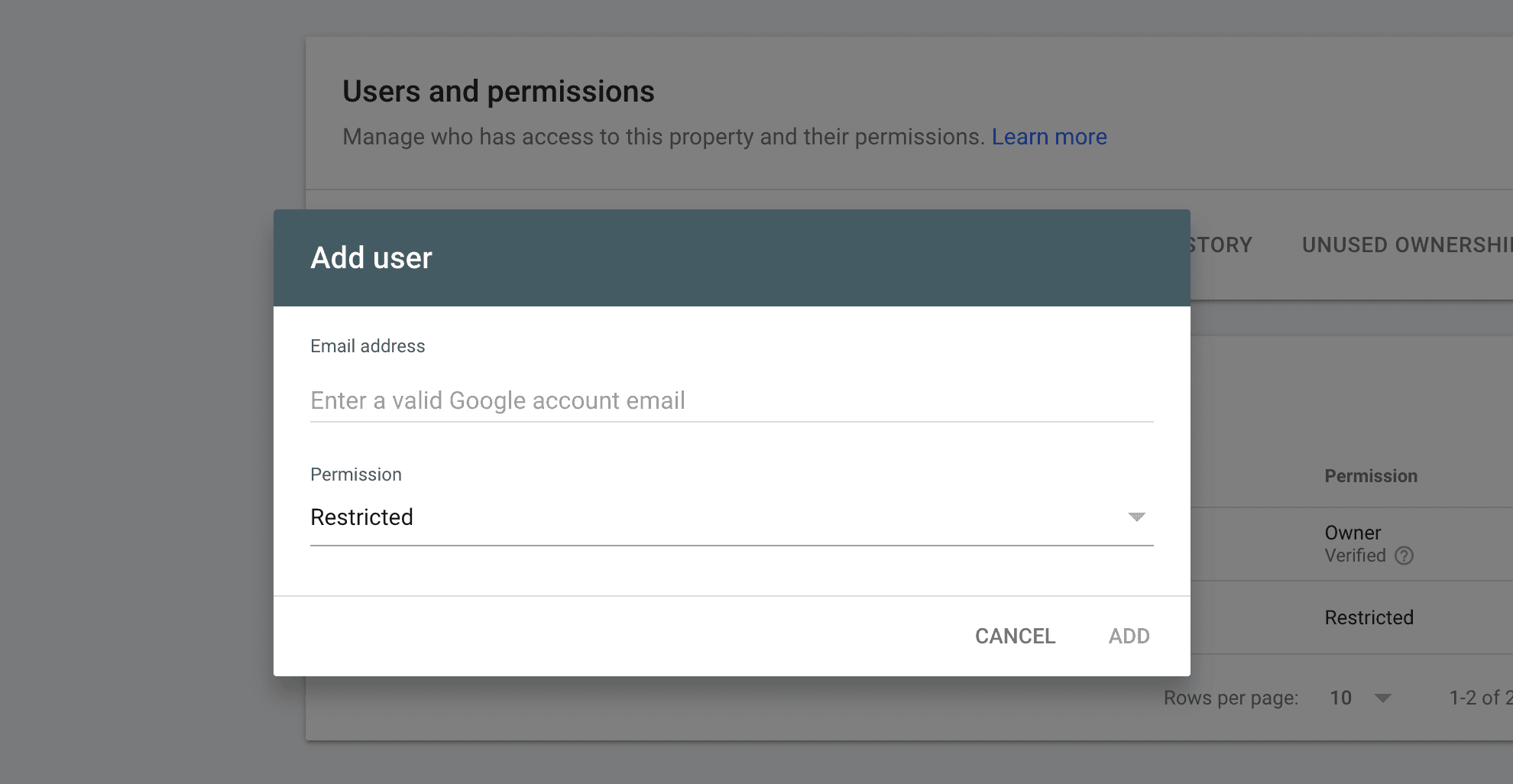
Click Add user and enter the following email address:
insights-gsc@iterant-insights.iam.gserviceaccount.comSet the permission level
Select Restricted from the permission dropdown. This gives Iterant read-only access to your search data. It cannot modify settings, submit URLs, or change anything in your account.
Confirm
Click Add. The service account appears in your users list right away, with no email confirmation needed.
What Iterant can see
With Restricted access, Iterant can read:
- Search performance data: queries, pages, clicks, impressions, CTR, and average position.
- Index coverage: which pages are indexed and which have issues.
- Sitemaps: submitted sitemaps and their status.
It cannot submit URLs for indexing, remove URLs, change settings, or add other users.
Troubleshooting
Last updated on